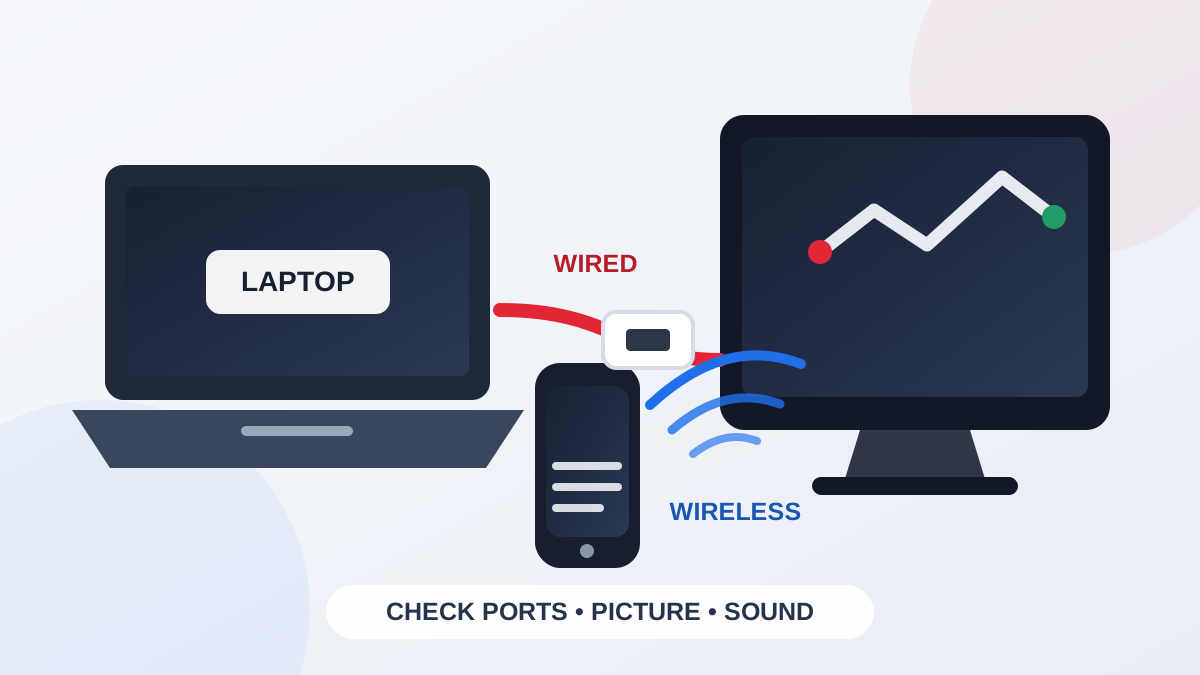
How to Connect a Laptop or Phone to a TV
A larger screen can make films, legal sports streams, presentations, photos, and games easier to share. The connection method matters: a cable is usually the most predictable route, while wireless casting is convenient when every device supports the same standard.
Quick answer: choose the connection from the ports you have
- Laptop with HDMI: use a compatible HDMI cable between the laptop and TV.
- Laptop with USB-C or Thunderbolt: confirm that the port supports video, then use a compatible USB-C-to-HDMI cable, adapter, or hub.
- Laptop with DisplayPort: use a cable or adapter that converts the laptop output to an input available on the TV.
- iPhone or iPad: use AirPlay with a compatible display, or a wired adapter that matches the exact device connector and supports video output.
- Android phone: use Google Cast when supported. Wired video varies by model, so check the manufacturer specification first.
- Windows wireless display: use the built-in Cast option when the PC and receiving display support the same wireless display method.
The connector shape alone is not proof of compatibility. In particular, a USB-C port may handle charging and data without sending video. Check the exact phone or laptop model before buying a cable or hub.
Option 1: connect with HDMI
- Identify the video output on the laptop or phone and an available HDMI input on the TV.
- Choose a cable or adapter that supports the resolution and refresh rate you plan to use.
- Connect both ends without forcing the plugs, then select the matching HDMI input with the TV remote.
- On a laptop, choose whether to duplicate the screen or use the TV as a second display.
- Open the sound settings and select the TV or HDMI output if audio does not switch automatically.
For a short home setup, one direct cable is simpler than a chain of adapters. If a hub is necessary, include the hub in your compatibility check: its video output, power input, and cable can each limit the final result.
Option 2: use USB-C to HDMI
USB-C is useful because one hub can provide display output, charging, storage, and other connections. It is also a common source of confusion. Look for explicit video-output support in the device specification, such as DisplayPort over USB-C or Thunderbolt compatibility. Then check that the adapter supports the TV resolution you need.
If the laptop charges through the same USB-C port, a hub with passthrough power can keep it charged during a long presentation or viewing session. The charger, hub, and laptop must support compatible power levels; do not assume that any charger will supply the laptop correctly.
Option 3: cast wirelessly
Wireless casting works best when the phone, laptop, TV or streaming device, and app support the same method. Put the sending device and receiving display on the same trusted Wi-Fi network unless the manufacturer instructions say otherwise.
- AirPlay: Apple’s guidance requires the iPhone or iPad and compatible receiving device to be on the same Wi-Fi network. Some video apps may not support AirPlay.
- Google Cast: open a Cast-enabled app, select the Cast control, and choose the compatible TV or streaming device on the same network.
- Windows: open the Cast or wireless display controls and choose a supported receiving display.
Use the official app supplied by your legal viewing provider. App permissions and content rights can prevent full-screen mirroring even when photos or the phone interface mirror correctly. In that case, use the provider’s supported TV app or connection method.
Set picture and sound without guesswork
Start with the TV’s native resolution or the recommended setting shown by the operating system. If the image is cropped, check the TV picture-size setting and the computer display scaling. For gaming at a higher refresh rate, the source port, adapter, cable, TV input, and selected display mode must all support the target setting.
If you see the picture but hear the laptop or phone speakers, select the TV, HDMI device, AirPlay receiver, or Cast device in the sound-output menu. Keep the TV volume moderate during the first test, then adjust it after audio is confirmed.
Common connection symptoms and what to check
- No signal: confirm the TV input, reconnect both ends, and try another known working input or cable.
- Picture drops in and out: shorten the adapter chain and test at a lower supported resolution to identify whether the cable or adapter is the limiting part.
- Wireless TV not listed: confirm compatibility, connect both devices to the same network, and follow the receiver’s official setup instructions.
- Video plays on the phone but not the TV: use the official provider app and a supported playback route; the app may restrict screen mirroring.
- Noticeable delay: use a wired HDMI path for presentations, games, or other uses where timing matters.
Reusable setup checklist
- Record the exact phone or laptop model.
- Photograph the source ports and the available TV inputs.
- Confirm wired video-output or wireless-casting support.
- Check the required resolution and refresh rate.
- Test picture, sound, charging, and app access before guests or a presentation.
- Keep cables ventilated, untangled, and away from walkways.
- For live video, also use the network-stability checklist.
When in-store assistance helps
If the model specification is unclear, bring the phone or laptop model, a photo of the TV inputs, and the intended use. The accessories page covers cables, adapters, hubs, chargers, audio, and setup add-ons. You can also compare new devices or used devices and monitors when the current device lacks the output you need.
Before visiting, ask about compatibility and availability on WhatsApp, or use the Al Barsha store page for visit details.
Frequently asked questions
Does every USB-C port send video to a TV?
No. The laptop or phone must support video output through that USB-C port. Check the device specification or manufacturer documentation before buying an adapter.
Why is the picture on the TV but the sound stays on the laptop?
The display can connect while the original speakers remain selected. Open the device sound settings and choose the TV, HDMI output, adapter, or wireless display as the audio output.
Is HDMI or wireless casting better for live video?
HDMI is usually the more predictable choice because it does not depend on the home wireless network. Casting is more convenient when the phone, app, TV, and network all support the same method.